
Do you want precise data from your online store to populate your reports? Everything might appear to be running smoothly on the frontend of your shop, but without a look under the hood, you are flying blind. You might know that you are selling, but do you know who is buying, where they are dropping off, and which marketing channels are actually driving revenue?
For many store owners, the shift to Google Analytics 4 (GA4) feels mysterious. It is a completely different beast than the Universal Analytics we used for a decade. But do not panic. While there is technical implementation involved, the payoff is massive. The finest tracking customization you can do for your business is sending clean, granular eCommerce data to GA4.
In this comprehensive guide, XCEEDBD will walk you through the entire process. We will clarify the technical jargon and demonstrate the appropriate methods for:
- Understanding the new GA4 architecture.
- Setting up your account and data streams.
- Implementing code on major platforms (Shopify, WooCommerce, Magento, and Custom HTML).
- Configuring specific eCommerce events like “Add to Cart” and “Purchase.”
Let’s get started on transforming your data into actionable revenue insights.
Overview of Google Analytics 4 (GA4)
Google Analytics 4 is not just an update; it is a complete reimagining of web analytics. It is a new breed of measurement that moves beyond simple traffic tracking to help marketers monitor critical customer usage indicators efficiently.
The Shift to Event-Based Data
The most significant change is the data model. Old analytics relied on “Sessions” (a group of hits within a timeframe). GA4 is entirely event-based. This means every interaction—a page view, a scroll, a click, a product view, or a purchase—is counted as an “event.”
This allows GA4 to use AI and machine learning to track the customer journey across multiple platforms (web and app) more cohesively. It offers in-depth insights into how customers engage with your goods and services, independent of the device they use.
Privacy First
In an era of increasing data scrutiny, GA4 prioritizes client privacy. It is designed to adapt to a cookie-less future and opposes reliance on deprecated tracking methods, helping you navigate complex privacy rules like:
- California Consumer Privacy Act (CCPA)
- General Data Protection Regulation (GDPR)
Key Features of GA4 for eCommerce

Why go through the trouble of integrating GA4? Because it offers sophisticated solutions with unmatched insights.
1. Enhanced eCommerce Tracking
GA4 provides a standardized set of eCommerce events. It tracks metrics like product views, clicks, add-to-carts, checkouts, and transaction data to provide a thorough understanding of customer behavior. This is not just “hits”; it is rich data containing product names, IDs, categories, and prices.
2. Machine Learning & Predictive Analytics
This is a game-changer. GA4 uses predictive metrics, such as Purchase Probability and Churn Probability. It employs machine learning to estimate the chance a user will make a purchase within the next 7 days. This allows businesses to automatically spot trends and divide their clientele into groups for hyper-targeted advertising.
3. Cross-Platform Journey
Because it uses event-based data, GA4 stitches together the user journey whether they start on a mobile app and finish on a desktop website.
4. Data Protection Controls
To assist eCommerce companies in complying with regulations, GA4 includes robust capabilities such as automatic data deletion and granular data retention controls.
How to Set Up Your GA4 Account
Before we touch any code, we need to configure the property correctly. Follow these steps to set up a GA4 eCommerce tracking account.
Step 1: Create a GA4 Property
If you are new to Google Analytics:
- Visit the Google Analytics website.
- Click “Start Measuring” or “Create Account” in the Admin section.
- Enter an Account Name (usually your business name). This structure allows you to monitor analytics on one or more assets.
- Click “Next” to add a property.


If you are an existing user:
- Go to the Admin area (the gear icon).
- In the Property column, click “Create Property.”
- Enter your Property Name (e.g., “My Store – GA4”) and select your reporting time zone and currency.
- Select your industry category and business size.
- Accept Google’s terms and conditions.


Step 2: Add Data Streams
A “Data Stream” is the source of information feeding into your property. In GA4, you can have streams for Web, iOS, and Android all feeding into one dashboard.

- Go to Admin > Property > Data Streams.
- Select Web.
- Enter your website URL (e.g., https://www.yourstore.com) and a stream name.
- Keep “Enhanced Measurement” enabled (this automatically tracks scrolls, outbound clicks, and site search).
- Click “Create Stream.”

Once created, you will see a Measurement ID (it starts with G-XXXXXXX). Copy this; you will need it for the integration.
Integrating GA4 with Your Website (Adding Tags)
To feed website data into Google Analytics, you must add tags to your site’s code. There are two main ways to do this: using a CMS integration or manually adding the code.
Option A: Adding Tags to Commonly Used CMS Platforms
If your store uses WordPress, WooCommerce, or Wix, you likely do not need to touch raw HTML. You just need your “G-” ID.
- Locate your ID: Go to Admin > Data Streams > Web and copy the “Measurement ID” in the upper right corner.
- WordPress/WooCommerce: Use a plugin like “Google Listings & Ads” or a dedicated header footer code manager. Paste the ID into the Google Analytics settings box.
- Wix: Go to Marketing Integrations > Google Analytics and paste the G-ID.
Option B: Adding Tags to Custom HTML / Other Platforms
If you are using a custom build or a platform that doesn’t natively support the G-ID, you must manually install the Global Site Tag (gtag.js).
Instructions:
- Go to Admin > Data Streams > Web.
- Scroll to View Tag Instructions > Install Manually.
- Copy the code block provided.
- Paste it immediately after the <head> tag on every page of your website.
The Base GA4 Code:
HTML
<script async src="https://www.googletagmanager.com/gtag/js?id=GA_MEASUREMENT_ID"></script>
<script>
  window.dataLayer = window.dataLayer || [];
  function gtag(){dataLayer.push(arguments);}
  gtag('js', new Date());

  gtag('config', 'GA_MEASUREMENT_ID');
</script>
Note: Replace GA_MEASUREMENT_ID with your actual ID.
Handling Multiple Data Streams
If you are tracking an App and a Website, you can configure multiple streams in the code.
Web Data Stream:
JavaScript
gtag(‘config’, ‘GA_MEASUREMENT_ID’, { ‘stream_id’: ‘WEB_STREAM_ID’ });
iOS/Android Data Stream:
JavaScript
gtag(‘config’, ‘GA_MEASUREMENT_ID’, { ‘stream_id’: ‘APP_STREAM_ID’ });
Configuring eCommerce Tracking
Simply adding the base tag will track page views, but it will not track revenue or products. To track eCommerce actions, you must implement specific events.
This part often requires a developer or a specialized plugin. The code must be populated dynamically with data from your website’s database (like product price and name).
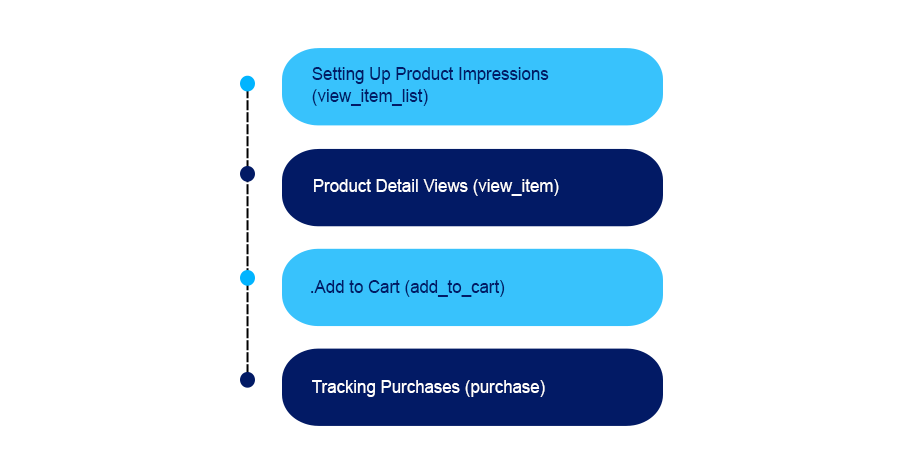
1. Setting Up Product Impressions (view_item_list)
This tracks how many times customers view a list of products (category pages).
- Event Name: view_item_list
- Parameters: items (an array including item_id, item_name, price).
2. Product Detail Views (view_item)
This triggers when a user views a single product page.
- Event Name: view_item
- Importance: This signals interest. If you have high views but low add-to-carts, your price or description might be the issue.
3. Add to Cart (add_to_cart)
This is a critical conversion step.
- Event Name: add_to_cart
- Implementation: You must trigger this event when the button is clicked. It allows you to build audiences for “Cart Abandoners” to retarget later.
4. Tracking Purchases (purchase)
This is the holy grail. It tracks the final transaction.
- Event Name: purchase
- Required Parameters: transaction_id, value (total revenue), currency, tax, shipping, and the items array.
Example Purchase Code Snippet:
JavaScript
gtag("event", "purchase", {
    transaction_id: "T_12345",
    value: 25.42,
    tax: 4.90,
    shipping: 5.99,
    currency: "USD",
    coupon: "SUMMER_SALE",
    items: [
     {
      item_id: "SKU_12345",
      item_name: "Stan and Friends Tee",
      price: 9.99,
      quantity: 1
     }
    ]
});
Integrating GA4 with Specific eCommerce Platforms
Different platforms offer different advantages when integrated with GA4. Here is how they stack up.
Shopify Integration
Shopify has a native Google channel, but for advanced users, custom data layers are often better.
- Flexible Conversion Modeling: Shopify allows you to customize conversion metrics to match your KPIs.
- Audience Segmentation: By integrating GA4, you can build dynamic segments based on high-value customers (monetization) or window shoppers (engagement).
- Lifecycle Insights: GA4 offers a comprehensive perspective of the Shopify customer journey, from acquisition to retention.
Magento (Adobe Commerce) Integration
Magento often requires more technical setup or extensions (like the Anowave extension) but offers deep power.
- Comprehensive Behavior Analysis: Integrate GA4 to obtain detailed insights into complex product configurations often found on Magento sites.
- Cross-Platform Mastery: Excellent for larger enterprises using Magento who also have mobile apps.
- Advanced Event Tracking: You can measure custom interactions, such as “Request a Quote” (common in B2B Magento stores) alongside standard retail events.
WooCommerce Integration
WooCommerce runs on WordPress, making it highly customizable.
- Predictive Analytics: Use GA4’s machine learning to predict which WooCommerce users are likely to churn.
- Tailored Reporting: The dedicated eCommerce event model in GA4 streamlines reporting for WooCommerce, providing a simplified view of product sales versus shipping costs.
- Privacy Compliance: Using official integrations ensures your tracking procedures follow privacy standards, keeping your WooCommerce store compliant with GDPR.
Why Integrating GA4 is Vital for Digital Marketing
Integrating GA4 is not just a technical task; it is a strategic necessity. Here is why it matters for your bottom line.
1. Data-Driven Insights & Strategy
The integration goes above and beyond typical analytics. It allows you to move from “gut feeling” marketing to data-backed decisions. You can see exactly which blog post led to a sale or which Instagram ad resulted in a high-value cart.
2. Enhanced User Journey Tracking
GA4 records user interactions at every stage, from the first website visit to the last transaction. Digital marketers can comprehend the customer’s path to conversion and spot bottlenecks. For example, if 100 people add to cart but only 10 buy, you know your checkout process has friction.
3. Cross-Device Clarity
In the age of multi-device usage, GA4 captures interactions seamlessly. A user might click an ad on their smartphone during their commute and buy on their desktop at work. GA4 unifies this view, so you don’t double-count users or lose attribution.
4. Remarketing Power
Marketers can establish segments based on user activity. Did someone view “Red Shoes” but not buy? You can send that exact data to Google Ads to show them a display ad for those specific shoes. This personalized content boosts conversion probability significantly.
How Can XCEEDBD Help?
Setting up the Data Layer, configuring Tag Manager, and ensuring every event fires correctly can be daunting. One missing comma in the code can break your data collection.
XCEEDBD can greatly assist in integrating GA4 seamlessly into your digital ecosystem.
- Expert Implementation: Our team of skilled professionals specializes in the latest tracking technologies, ensuring a smooth transition.
- Custom Solutions: Whether you are on Shopify, Magento, or a custom B2B platform, we provide solutions tailored to your business needs—from setting up a new property to configuring advanced features like B2B eCommerce development tracking.
- Ongoing Support: We don’t just set it and leave it. We ensure your data remains accurate as your site evolves.
Do you want to ensure your data is accurate, compliant, and actionable? Connect with us for professional guidance with our eCommerce development services.
Final Call
You now have a roadmap for the entire eCommerce measurement in GA4. This tutorial is designed to help you successfully set up GA4 to monitor user interactions on your website or mobile application.
A Note on Patience: When you first install the codes, data can take 24–48 hours to fully populate in your GA4 reports. If you don’t see numbers immediately, exercise patience and check back later.
Verification: Always use the “DebugView” in GA4 (under Admin) to test your events in real-time before assuming they are broken.
To support your unique use cases, remember that you may rely on our digital marketing reporting tools to transfer your PPC/SEM and Google Analytics eCommerce data to Google Sheets, Google Looker Studio, and other BI tools for additional analysis.
All in all, if the technical side feels overwhelming, you can also hire eCommerce developers at XCEEDBD for professional guidance and peace of mind.
FAQ: GA4 eCommerce Integration
Q1: How long does it take for eCommerce data to show in GA4? Standard reports can take 24 to 48 hours to process data. However, you can check if tags are firing immediately using the “Realtime” report or “DebugView” in the Admin settings.
Q2: Can I run Universal Analytics (UA) and GA4 at the same time? Yes, and it was recommended during the transition period. However, UA stopped processing new data in July 2023. You should now be relying solely on GA4.
Q3: What is the “Data Layer”? The data layer is a virtual layer of your website’s code that contains information (like product price, name, and currency) in a format that Google Tag Manager or GA4 can read easily. It is essential for accurate eCommerce tracking.
Q4: Why do my GA4 sales numbers not match my store backend perfectly? Small discrepancies (1-5%) are normal due to ad blockers, users declining cookies, or browser privacy settings. If the discrepancy is larger, you likely have a configuration error or duplicate firing tags.
Q5: Do I need a developer to set up GA4 eCommerce? For basic setups on platforms like Shopify, plugins can handle it. For custom sites or advanced tracking (like profit margin tracking or custom dimensions), hiring a developer is highly recommended to ensure accuracy.
Q6: What is the difference between “view_item” and “view_item_list”? view_item tracks when a user looks at a specific product detail page. view_item_list tracks when a user sees a category page or search result list containing multiple products.
Ready to Upgrade Your Analytics?
Don’t let data gaps cost you revenue. Ensure your tracking is pixel-perfect today.
[Explore Our eCommerce Development Services]